Why every storage call deserves a label
Your phone is still your biggest rental channel, yet most operators can't answer three basic questions: how many calls were actually rental opportunities, how many of those rented, and why the rest didn't. RingCentral's AI Conversation Expert (ACE) can answer all three, but only if it is set up for how a storage business talks.
Out of the box, ACE transcribes and summarizes recorded calls and applies built-in trackers and scorecards for your industry. The real value for storage comes from custom Trackers: rules that flag when a specific topic, situation or outcome comes up on a call. Built well, they turn thousands of recordings into a rental funnel, a ranked list of lost-rental reasons, and a clear picture of what your service and billing calls are really about.
This guide walks through the checklists and tracker recommendations we use when we set up ACE for self-storage operators, then covers the call center practices that turn that data into results: closing rate, lead response, abandoned calls, agent productivity, voice AI, AI call notes, daily KPIs, coaching and monthly reporting.
Before you start: the setup checklist
ACE only analyzes what it can hear, so most bad data traces back to setup, not the AI. Work through this list before building a single tracker.
Assign ACE licenses to admins first. The first licensed user automatically gets admin permissions, so license the person who will own setup before anyone else.
Turn on automatic call recording for the organization or for each call queue. RingCentral strongly recommends it because recordings are ACE's primary data source; an unrecorded call is an invisible call.
Confirm your recording announcement and consent language meets the requirements in every state where you operate.
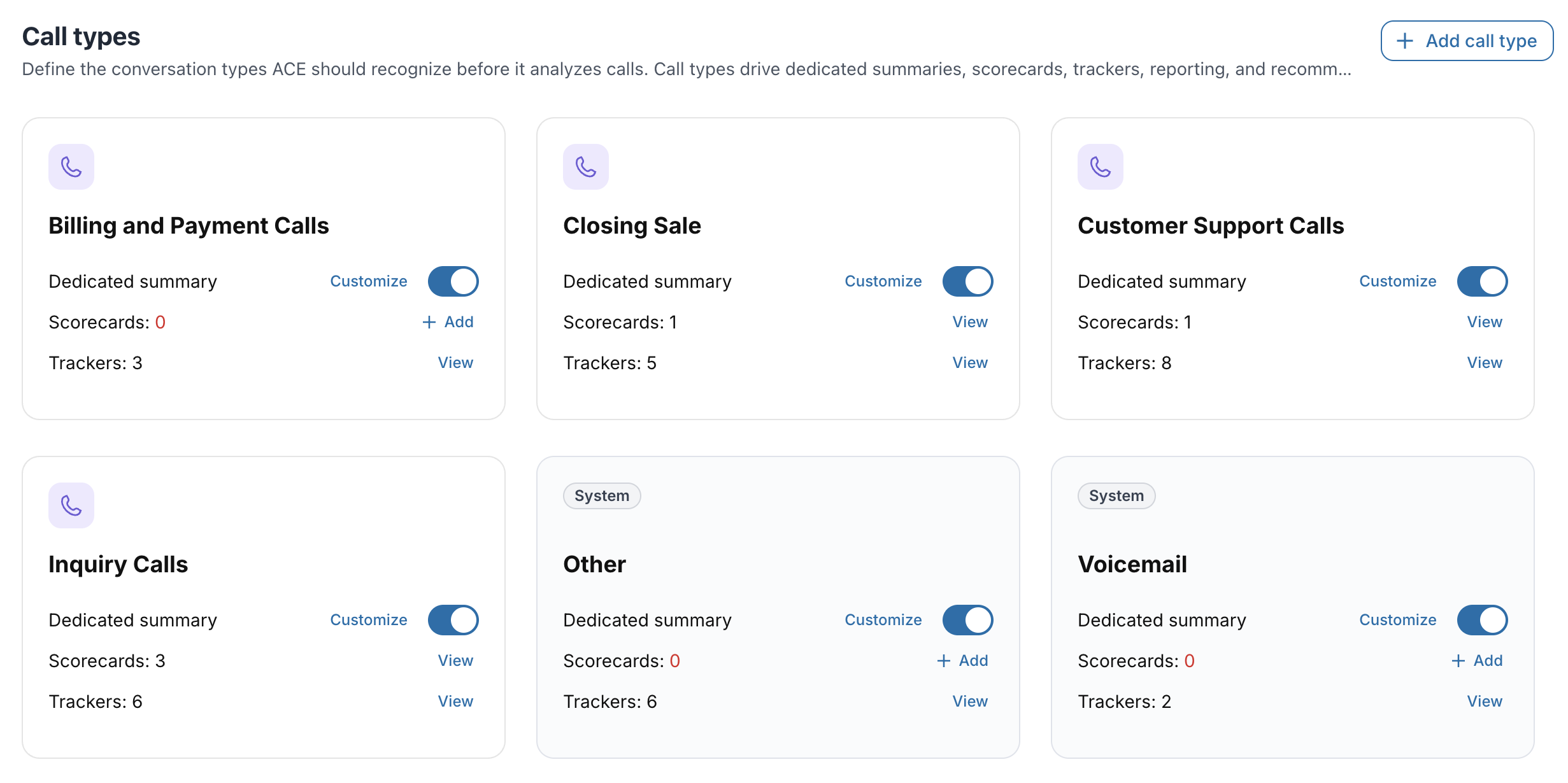
Set your call types in ACE's organization settings. It tailors the built-in call types, trackers and scorecards. There is not currently an industry set up for Self Storage, so pick the Call Types that seem most applicable to apply broad categories for all of your calls.
Build roles and teams to match your org chart: site managers under district or area managers, call center agents under their supervisor. Reporting and coaching follow this hierarchy.
Give each facility its own number or queue. Without it you can't tell which store a lost rental belongs to.
Decide who reviews what, and how often: district managers for site calls, the call center lead for agent calls, ownership for the monthly rollup.
Check data retention. ACE keeps data for one year by default; adjust it if you want year-over-year comparisons or have a shorter retention policy.
Spot-check call types after the first week. If ACE labels a rental call as support, use Wrong call type? on the call to correct it; ACE learns from the feedback.
Trackers 101 for self-storage
ACE offers three kinds of trackers, and a good storage setup uses all three. Built-in trackers cover the basics; custom Concept trackers catch situations however the caller phrases them; Key phrase trackers catch exact words like competitor names.
Built-in AI trackers: common topics for your industry, on by default. Example: general pricing or scheduling talk. We recommend disabling all of these trackers and going with new custom built trackers.
Concept trackers (custom): a situation described in a sentence, even when the words differ. Example: "Caller decides not to rent because the price is too high."
Key phrase trackers (custom): specific words or names. Example: "Public Storage", "Extra Space", "U-Haul", "climate controlled".
Every custom tracker is built the same way. In ACE, admins go to Admin Settings (or Configuration in the RingCentral app), then Trackers, then New Tracker, and set:
Name and tags. Use a consistent prefix so reports group cleanly, such as "Rental –", "Lost reason –", "Service –", "Billing –".
Call types the tracker applies to. Keep rental trackers on sales-type calls and billing trackers on support-type calls to cut false matches.
Filters (optional) to limit it to certain teams, such as the call center versus site managers.
What to track: a Concept description or Key phrases. We recommend Concept for 99% of cases.
Context that helps ACE find relevant conversations.
Conditions: whether the Agent or the Contact must raise it. This matters: "we're full" said by your manager is a lost-rental reason; "you're full?" asked by a caller may not be.
Publish, then review matches on the call Details page and the Trackers dashboards.
Write concept descriptions the way a manager would describe the moment to a new hire: one clear sentence, one situation, who says it. Several narrow trackers beat one broad tracker that tries to catch everything.
Tracking rental calls
Start by separating rental opportunities from everything else, then track how far each one got. That gives you a simple funnel: rental inquiries, quotes given, reservations or move-ins booked. Assign these trackers to Call Type that you use to identify sales calls.
Recommended rental trackers
Rental – Inquiry (Concept, raised by Contact): Caller is looking to rent a storage unit or asks about availability or pricing for a new rental.
Rental – Unit size discussed (Concept, Agent): Agent helps the caller choose a unit size based on what they're storing.
Rental – Price quoted (Concept, Agent): Agent gives the caller a monthly rate or move-in special for a specific unit.
Rental – Reservation made (Concept, Agent): Agent confirms a reservation for the caller with a unit and move-in date.
Rental – Rented on the call (Concept, Agent): Agent completes a rental or move-in over the phone, including taking payment or sending a lease.
Rental – Online link sent (Concept, Agent): Agent texts or emails the caller a link to reserve or rent online.
Rental – Add-on offered (Key phrase, Agent): "lock", "boxes", "moving supplies", "truck rental".
Rental – Competitor mentioned (Key phrase, Contact): names of the competitors near each store.
Checklist for rental tracking
Apply rental trackers to sales-type call types only.
Build "Reservation made" and "Rented on the call" as separate trackers; they are different outcomes with different value.
Add each market's local competitors to the competitor tracker, not just the national brands.
After two weeks, read 10 matched and 10 unmatched calls per tracker and tighten the concept wording.
Compare tracker counts to rentals in your management software for the same period to sanity-check the numbers.
Lost rental calls and the reasons behind them
A lost rental is a rental inquiry with no reservation or move-in. The number alone isn't useful; the reason is. One tracker per reason turns "we lost 40 rentals" into "we lost 14 to price, 9 to no climate-controlled units, and 6 because nobody offered a reservation."
Recommended lost-reason trackers
Lost reason – Price too high (Contact): Caller says the rate is more than they want to pay or that a competitor is cheaper. Tells you: rate or promo problem in that market.
Lost reason – No inventory (Agent): Agent says the requested size or type is not available. Tells you: unit mix or occupancy ceiling.
Lost reason – No climate control (Either): Caller needs climate-controlled or temperature-controlled space that isn't available. Tells you: product gap.
Lost reason – No electric (Contact): Caller needs a unit with power for tools, a fridge or a battery tender. Tells you: product gap.
Lost reason – No RV / boat / vehicle parking (Contact): Caller needs parking or covered storage for an RV, boat, trailer or car that isn't offered. Tells you: expansion opportunity.
Lost reason – Access hours (Contact): Caller needs 24-hour or earlier/later gate access than the store allows. Tells you: access policy.
Lost reason – Location / distance (Contact): Caller says the store is too far or in the wrong area. Tells you: marketing targeting.
Lost reason – Just shopping (Contact): Caller says they are comparing prices or not ready to commit yet. Tells you: follow-up opportunity.
Lost reason – No close attempt (Agent): Agent never offers to reserve or rent the unit before the call ends. Tells you: coaching opportunity.
Checklist for lost-rental tracking
Only apply lost-reason trackers to calls already matched by Rental – Inquiry, using filters where possible.
Keep "No inventory" on the Agent condition; it's the site confirming it, not the caller guessing.
Treat "No close attempt" as a coaching tracker, not a market reason. It is usually the most fixable loss.
Roll lost reasons up by store each month. Repeated "No electric" or "No RV parking" at one site is a capital-planning signal.
Pair "Just shopping" with a follow-up task so those callers get a call back within 24 hours.
Service and billing calls: context and outcomes
Service and billing calls often outnumber rental calls, and they cost staff time at every store. Track two things on each: why the tenant called and how it ended. That shows which calls could be automated, which policies cause confusion, and where revenue is leaking.
Why they called (context)
Billing – Make a payment (Contact): Tenant wants to pay rent over the phone.
Billing – Balance or due date question (Contact): Tenant asks how much they owe or when rent is due.
Billing – Late fee dispute (Contact): Tenant questions or asks to waive a late fee.
Billing – Rate increase complaint (Contact): Tenant is unhappy about a rent increase notice.
Billing – Autopay setup or issue (Contact): Tenant asks to set up, change or fix automatic payments.
Service – Gate code or access issue (Contact): Tenant can't get through the gate or needs their access code.
Service – Move-out notice (Contact): Tenant says they are moving out or vacating their unit.
Service – Maintenance or unit issue (Contact): Tenant reports a problem with the unit, door, lock, lights or property.
Service – Lien or auction (Contact): Tenant asks about a lien notice, overlock or upcoming auction.
How it ended (outcome)
Outcome – Payment taken (Agent): Agent processes a payment during the call.
Outcome – Fee waived (Agent): Agent agrees to waive or reduce a fee.
Outcome – Move-out saved (Agent): Agent offers a smaller unit, discount or other option and the tenant decides to stay.
Outcome – Escalated (Agent): Agent transfers the call or promises a manager will follow up.
Outcome – Unresolved (Contact): Caller ends the call without a solution or says they will call back.
Checklist for service and billing tracking
Apply these trackers to support-type call types so they don't fire on rental calls.
Watch "Make a payment" and "Gate code" volume: high counts point to calls that a payment IVR, text-to-pay or an AI agent could handle.
Track "Fee waived" by store and agent to see how much revenue is being given back and whether policy is applied consistently.
Pair "Move-out notice" with "Move-out saved" to measure retention attempts.
Have a manager review every "Lien or auction" call; they carry legal and reputation risk.
Turning trackers into reporting
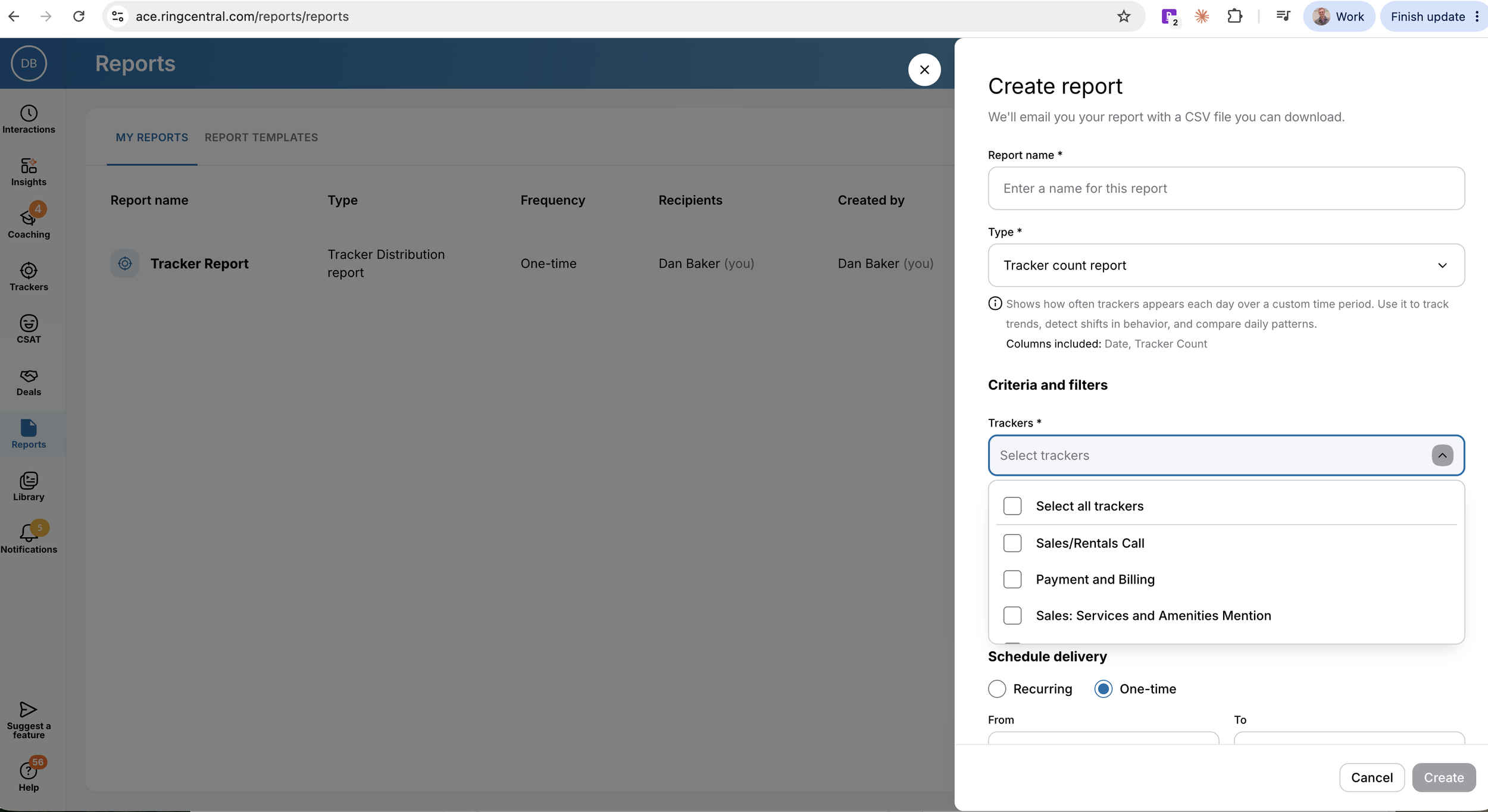
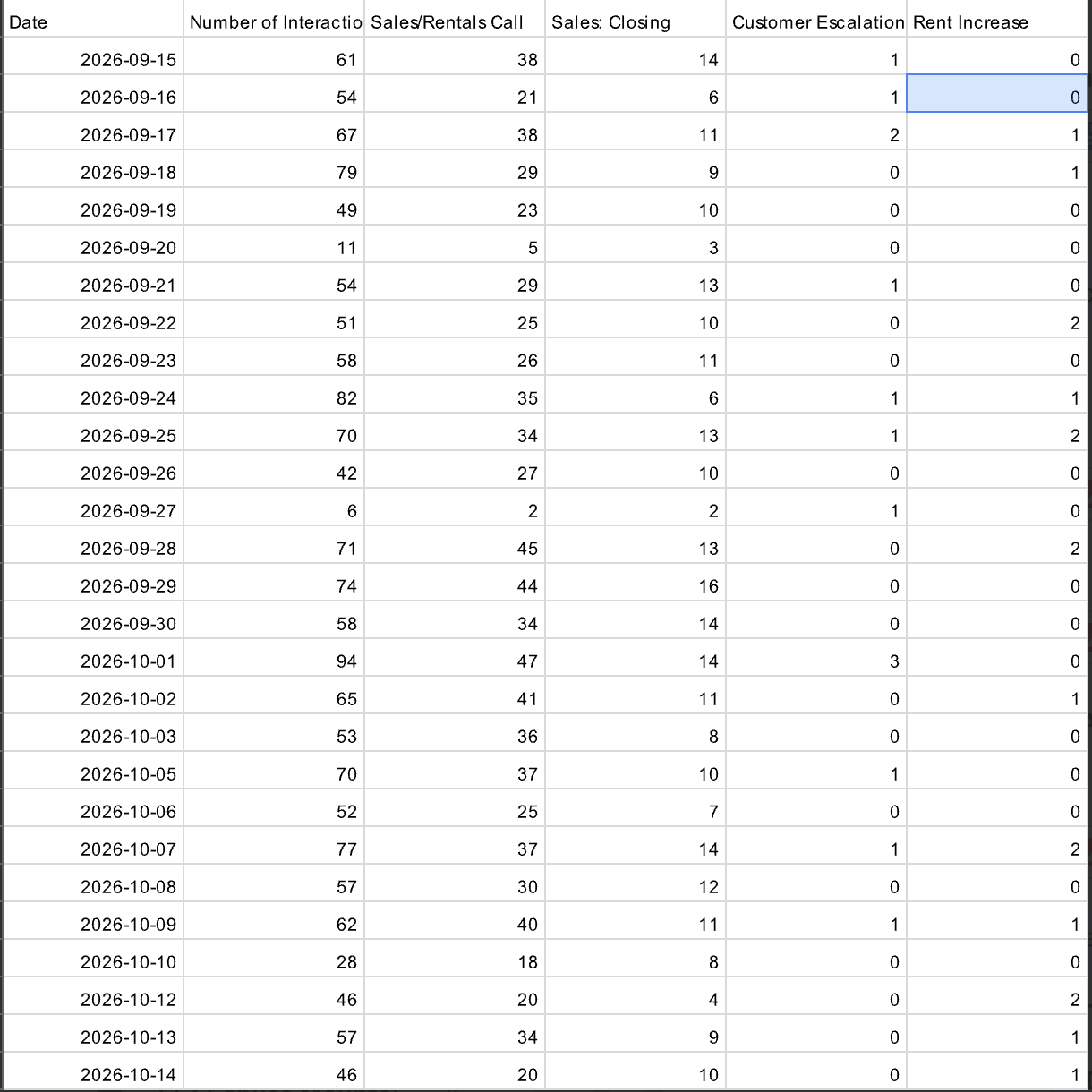
Trackers only pay off when someone looks at them on a schedule. Use ACE's Trackers dashboards for the counts and the call Details page to listen to examples, then build a simple rhythm around them. If exporting reports to Excel to create custom reports, use the Tracker Count Report.
Weekly (call center lead, district managers): "No close attempt" calls, escalations and unresolved calls; pick two calls per agent for coaching.
Monthly (operations / revenue management): rental funnel by store (inquiry → quote → reservation → rental) and the top three lost-rental reasons per store.
Monthly (operations): service and billing volume by type: what could be automated, fee waivers given, move-outs saved.
Quarterly (ownership): product gaps that keep showing up (climate control, electric, RV parking) and competitor mentions by market.
These recommendations make the reporting trustworthy:
Export raw reports or access the API to build custom reports
Pair trackers with scorecards. ACE's built-in scorecards feed its Coaching insights; add questions like "Did the agent offer to reserve the unit?" so coaching lines up with what the trackers measure.
Reconcile against your management software. ACE tells you what was said; your management software tells you what actually rented. A monthly side-by-side keeps both honest.
Report by store, not just company-wide. A company-wide lost-rental number hides which facility has the pricing problem and which has the inventory problem.
Scorecards
Use Scorecards to track and coach agent performance
Set scorecards by call type. Rental call types should have scorecards focused on the sales script, such as “did the agent ask for the sale"?”
Use scorecards for adherence. Scorecards do not only have to be a performance based metric, they also can be used to ensure adherence, such as “did the agent provide the gate access hours after completing the move in process?”
Common pitfalls
Most ACE setups that disappoint storage operators fail for the same handful of reasons.
Calls aren't recorded. If only some queues or users record, your counts are partial and nobody knows it. Confirm recording on every queue and site line first.
One number for many stores. Shared main numbers make it impossible to say which facility lost the rental. Per-site numbers or queues fix it.
Trackers that are too broad. "Customer mentions price" fires on nearly every call. Write narrow concepts tied to a decision: "decides not to rent because of price."
Wrong speaker condition. A lost-reason tracker set to "Contact" when the agent is the one who says "we don't have any 10x10s" will miss most matches.
Rental trackers firing on tenant calls. Scope trackers by call type, and correct wrong call types in the first few weeks so ACE learns your mix.
No owner. If no one reviews the dashboards weekly, the trackers become another unused report. Assign the review in the setup checklist.
How Loganwood helps
Loganwood builds phone systems and call centers specifically for self-storage, and ACE is only as good as the system underneath it. We set up recording, per-site numbers and queues, call types, and a storage tracker library like the one above, then tune it against your management software so the numbers hold up.
Not sure where your phone setup stands today? Start with a free phone and internet audit at loganwoodit.com/free-audit, or reach out to us at 219-874-1600.
Sources
RingCentral, Creating and managing trackers in AI Conversation Expert
RingCentral, Getting started with AI Conversation Expert
RingCentral Developers, AI Conversation Expert (ACE)